· Tips · 7 min read
How to Create a Google Review QR Code for Your Business (Free)
Turn your Google review link into a QR code that customers can scan from invoices, business cards, yard signs, or vehicle wraps. Here's how to do it for free in under 2 minutes.
A Google review QR code is one of the easiest ways to collect more reviews from customers — especially for service businesses that hand off physical paperwork like invoices, receipts, or estimates.
Instead of asking customers to “find us on Google and leave a review” (5+ steps they’ll never do), you give them a code they can scan with their phone. One scan, and they’re on your Google review page. Done.
This guide walks you through creating one for free, where to put it, and how to get the most reviews from it.
What is a Google review QR code?
A QR code is a scannable barcode that opens a URL on a phone’s camera. A Google review QR code is one that points directly to your Google Business Profile review page.
When a customer scans it, their phone opens the Google review form for your business. No searching, no typing, no confusion. They just write (or tap to post) their review.
How to create a Google review QR code (step by step)
Step 1: Get your Google review link
You need a direct link to your Google review page. There are two ways to get one:
Option A: Use Ricorda’s free generator (recommended)
- Go to ricorda.io/review-link-generator
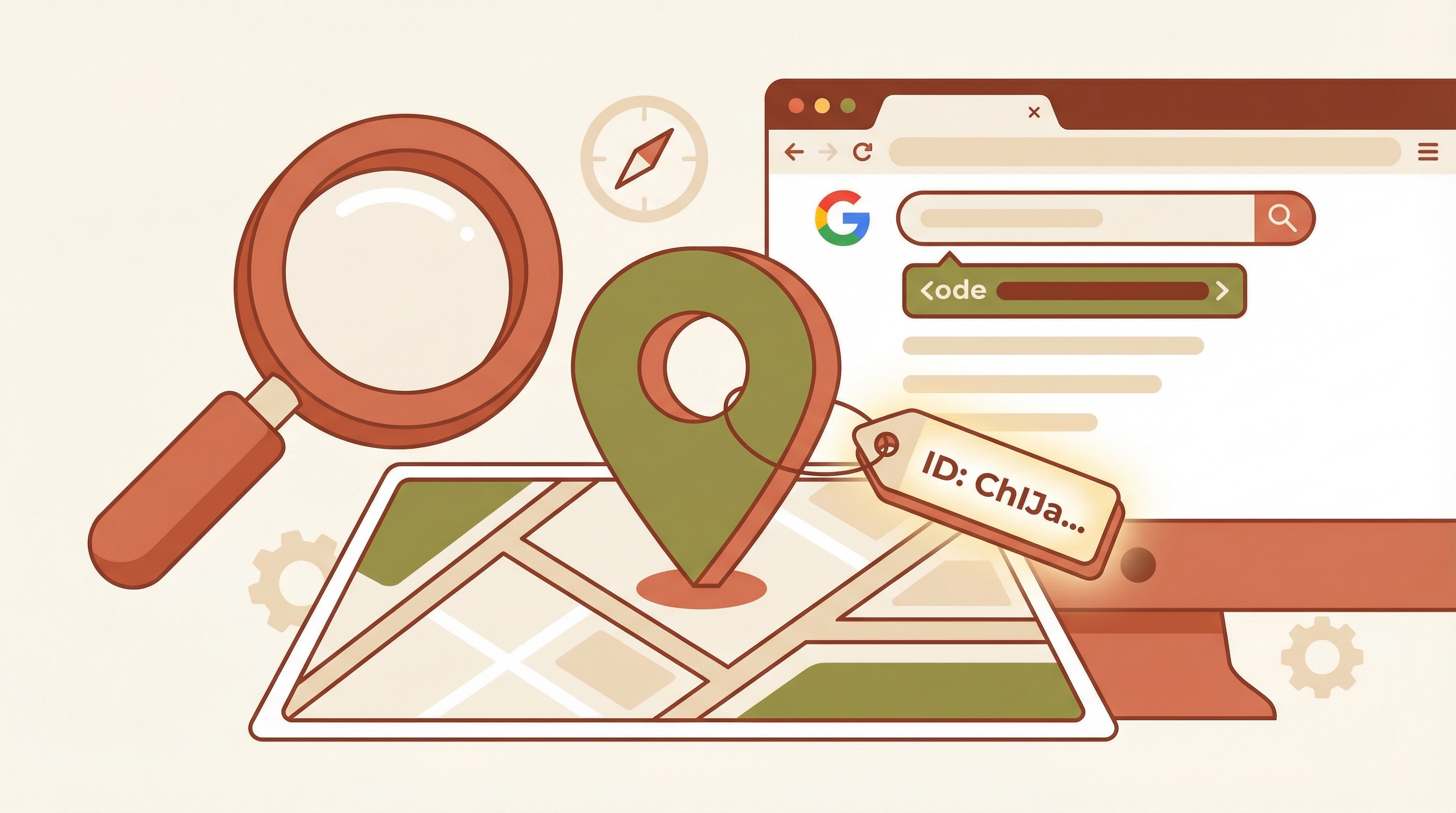
- Type your business name and select it from Google’s suggestions
- Copy the short link (e.g.,
ricorda.io/r/abc123)
This gives you a short, clean link that works perfectly in QR codes and is easy to share in other contexts too.
Option B: Get it from Google directly
- Search for your business on Google Maps
- Click your business listing
- Click “Ask for reviews” (or find it in your Google Business Profile manager)
- Copy the link Google provides
Note: Google’s native review links are extremely long and contain encoded characters. They work in QR codes but aren’t easy to share via text or print on materials.
Step 2: Generate the QR code
Once you have your review link, use any free QR code generator to create the code. Here are reliable free options:
- QR Code Generator — Simple, no signup required
- QRCode Monkey — Lets you customize colors and add a logo
- Google’s QR Code API — Simple URL-based generation for developers
Steps (using any generator):
- Paste your Google review link into the URL field
- Choose your preferred size (300x300px minimum for print)
- Download the QR code as a PNG or SVG file
That’s it. You now have a scannable code that takes customers directly to your Google review page.
Step 3: Test it
Before printing anything, test your QR code:
- Open your phone’s camera app
- Point it at the QR code on your screen
- Confirm it opens your Google review page
- Try it on a second phone to make sure it works across devices
Where to put your Google review QR code
The best placement depends on your business type, but the rule is simple: put it wherever customers will see it at the moment they’re happiest with your work.
On invoices and receipts
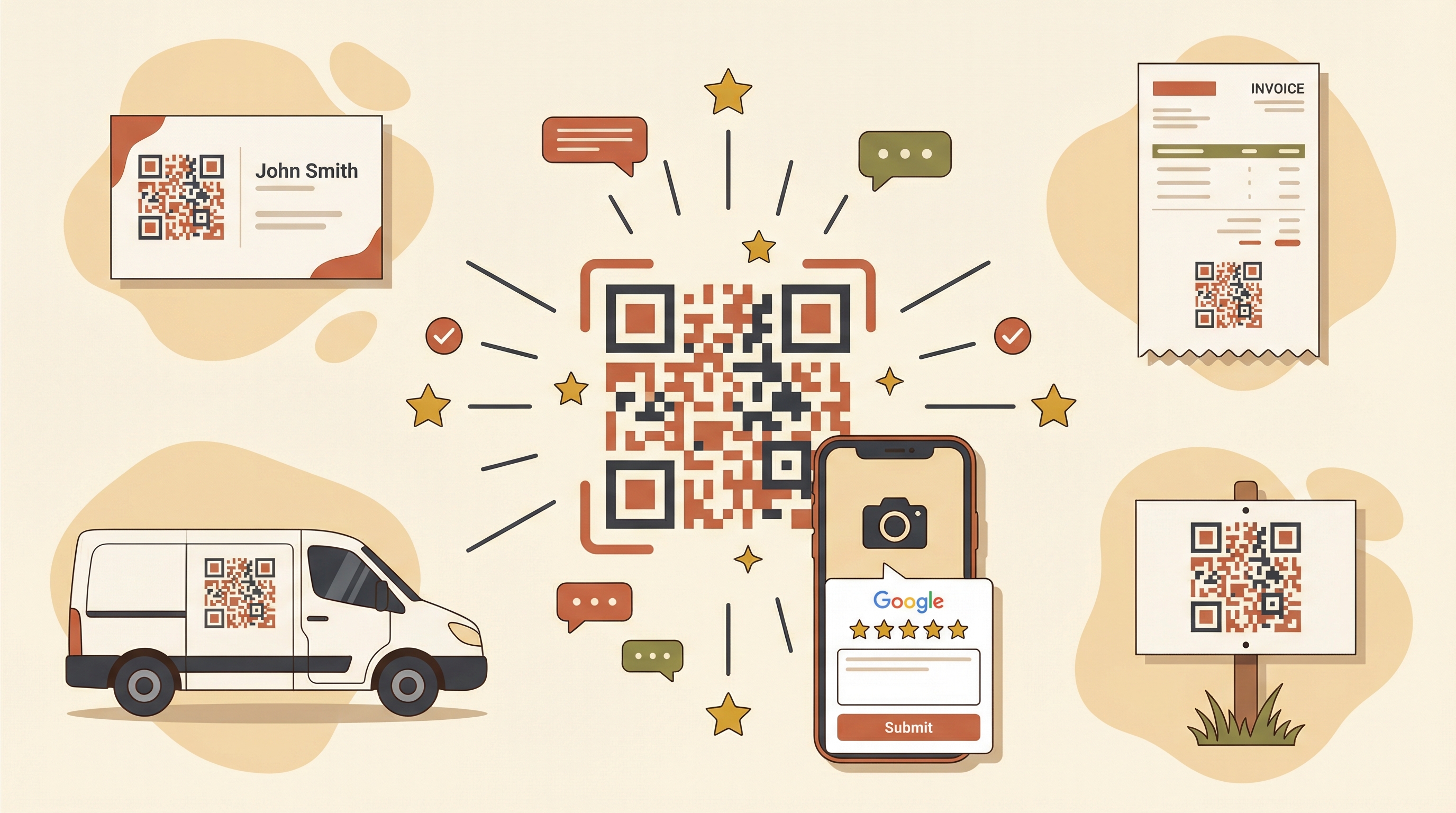
This is the highest-impact placement for most service businesses. The customer has just received your invoice, the job is done, and they’re looking at a document with your branding on it.
Add the QR code in the footer with a short message:
“Happy with our work? Scan to leave a quick Google review.”
On business cards
Include a small QR code on the back of your card. When you hand someone a card after a job, mention it:
“If you get a chance, scan the code on the back to leave us a review. It really helps.”
On vehicle wraps and signage
If you have a wrapped van or truck, add a QR code with “Scan to review us” text. Customers who see your vehicle parked in their driveway after a great job may scan it on the spot.
For yard signs (common for landscapers and contractors), a QR code invites neighbors to check your reviews, which can lead to referrals.
On printed materials
- Estimates and quotes — A QR code on estimates builds trust before the job even starts. Prospective customers can scan it to see your existing reviews.
- Flyers and door hangers — If you’re canvassing a neighborhood, a review QR code lets people verify your reputation instantly.
- Job completion checklists — If you have a walkthrough or sign-off sheet, include the code at the bottom.
At your physical location
If customers visit your shop, office, or storefront:
- At the counter or checkout
- On a table tent or small sign — “Enjoyed your visit? Scan to leave a review”
- On the door or window — Catches customers on their way out
In email signatures
Add the QR code as a small image in your email signature. Every email you send becomes a passive review request.
QR code best practices
Size matters
A QR code that’s too small won’t scan reliably. Minimum sizes:
| Placement | Minimum size |
|---|---|
| Business card | 0.8 x 0.8 inches (2 x 2 cm) |
| Invoice / receipt | 1 x 1 inch (2.5 x 2.5 cm) |
| Yard sign | 3 x 3 inches (7.5 x 7.5 cm) |
| Vehicle wrap | 6 x 6 inches (15 x 15 cm) |
| Poster / banner | 8+ x 8+ inches (20+ x 20+ cm) |
Contrast is critical
QR codes need high contrast to scan reliably. Black on white is the standard. If you customize colors to match your branding, ensure there’s strong contrast between the code and the background.
Dark code on a light background works. Light code on a dark background often doesn’t.
Always include a call to action
A QR code by itself means nothing. Always pair it with text that tells the customer what to do:
- “Scan to leave a Google review”
- “Happy with our work? Scan here”
- “Leave us a review — it takes 30 seconds”
Without a prompt, most people will ignore it.
Use a short URL
If your QR code also displays the URL as text (useful for people who don’t know how to scan QR codes), a short link like ricorda.io/r/abc123 is far more readable than Google’s native review URL, which looks like https://search.google.com/local/writereview?placeid=ChIJ....
Generate your free short review link here →
QR codes vs. texting review links: which works better?
Both work. But they work in different contexts.
| Method | Best for | Conversion rate |
|---|---|---|
| QR code | Physical touchpoints (invoices, cards, signs) | Moderate — requires customer to initiate |
| Text message | Direct outreach after job completion | High — delivered to their phone, one tap |
| Both together | Maximum coverage | Highest — passive + active collection |
QR codes are passive. The customer has to notice the code, decide to scan it, and follow through. Some will. Many won’t.
Text messages are active. They arrive on the customer’s phone at the right moment, with a direct link. 98% open rate, much higher conversion.
The ideal approach is both: QR codes on all your physical materials for passive collection, and automated text messages for active collection after every job.
Common mistakes to avoid
Linking to your Google Business Profile instead of the review page
Your general Google listing URL and your Google review link are different. The review link opens the review form directly. If you link to your listing, customers have to find the “Write a review” button themselves — and most won’t.
Make sure your QR code points to your review link, not your listing page.
Using a QR code generator that tracks or expires
Some free QR code generators create “dynamic” codes that route through their servers. These can expire, start showing ads, or stop working. For a review QR code you’re printing on physical materials, use a static QR code that encodes the URL directly. This will never expire or break.
Printing without testing
Always scan your QR code after printing, especially on materials with color backgrounds. Printing can reduce contrast and make codes unscannable.
Forgetting mobile users
If your QR code is on a webpage or in an email, mobile users can’t scan it — they’re already on their phone. For digital placements, use a clickable link instead of (or alongside) the QR code.
Automate the review ask entirely
QR codes are a great passive strategy, but the most consistent review collection comes from actively asking every customer after every job.
If you’re completing 5+ jobs a week, manually texting review links becomes another task to forget. That’s where automation helps.
With Ricorda, you text us the customer’s details when the job is done. We automatically:
- Send a personalized review request via SMS or WhatsApp (1 hour after the job)
- Help the customer write their review using AI
- Send a pre-filled Google review link — one tap to post
- Follow up if they don’t respond (up to 2 times)
- Thank them automatically when they post
- Alert you instantly if they leave a negative review
Starting at $14.99/month for 30 review requests. No app, no dashboard, no QR code required — just a text.
Get started with Ricorda → or generate your free review link to create a QR code today.